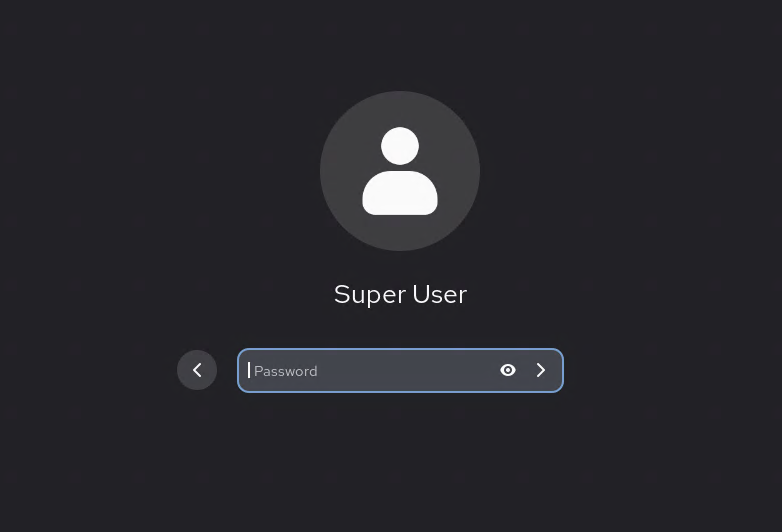



In this article I will show how you can download graphical GUI to almalinux 10.
1. First when you have logged in to your server. We will be doing the updates to make sure our server is up to date.
sudo dnf update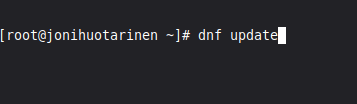
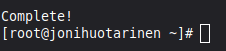
Update can take up to a few minutes. Update will be ready once when you see "Completed" in your in terminal.
2. Next we will be downloading GNOME desktop GUI. You can download it by using the next command.
yum groupinstall "Server with GUI"if by any time the terminal ask "Is this ok" just press y and then enter to continue

After this the download should start. Download can take up to a few minutes. Download is completed when you see "Completed" in the terminal.
3. Next we will be setting the downloaded GUI to be the system default. This will be done using the next command.
systemctl set-default graphical.target
if you want to be sure that the command worked. You can test it by using the next command.
systemctl get-default
It should give "graphical.target".
4. After this we will reboot the server. This can be done using "Reboot" command.
rebootIf reboot logs you out of the server, just log back in after this.
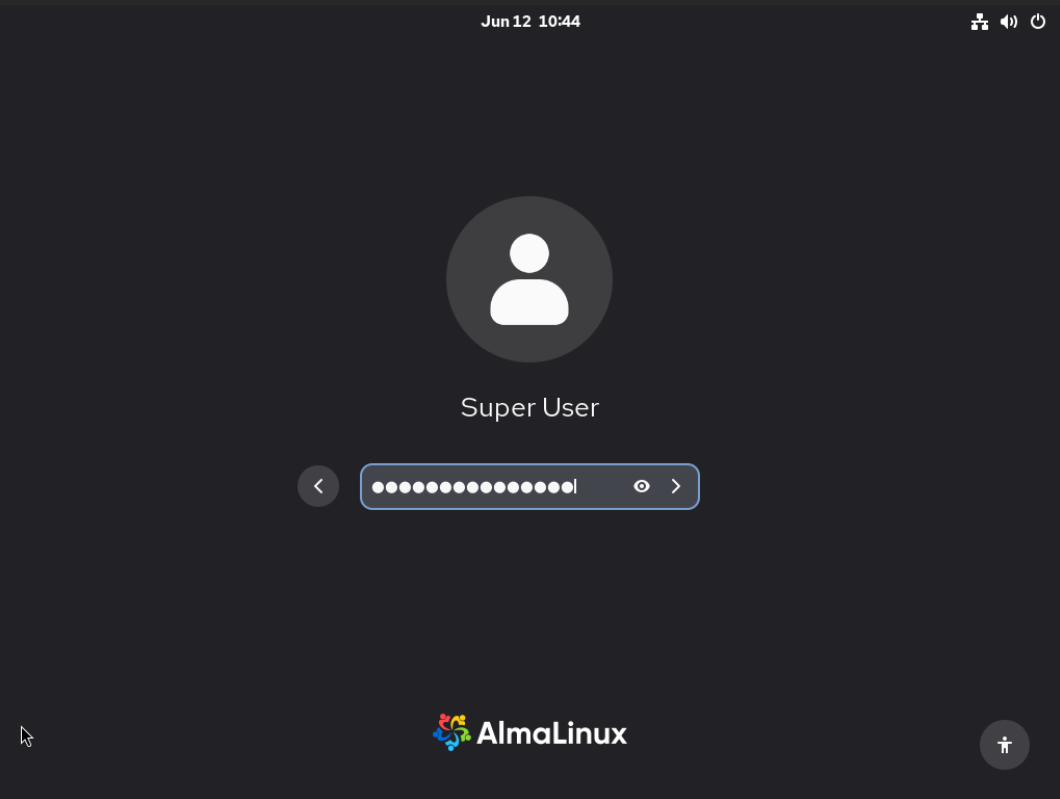
5. Now you can log into the server using the VNC acces panel.
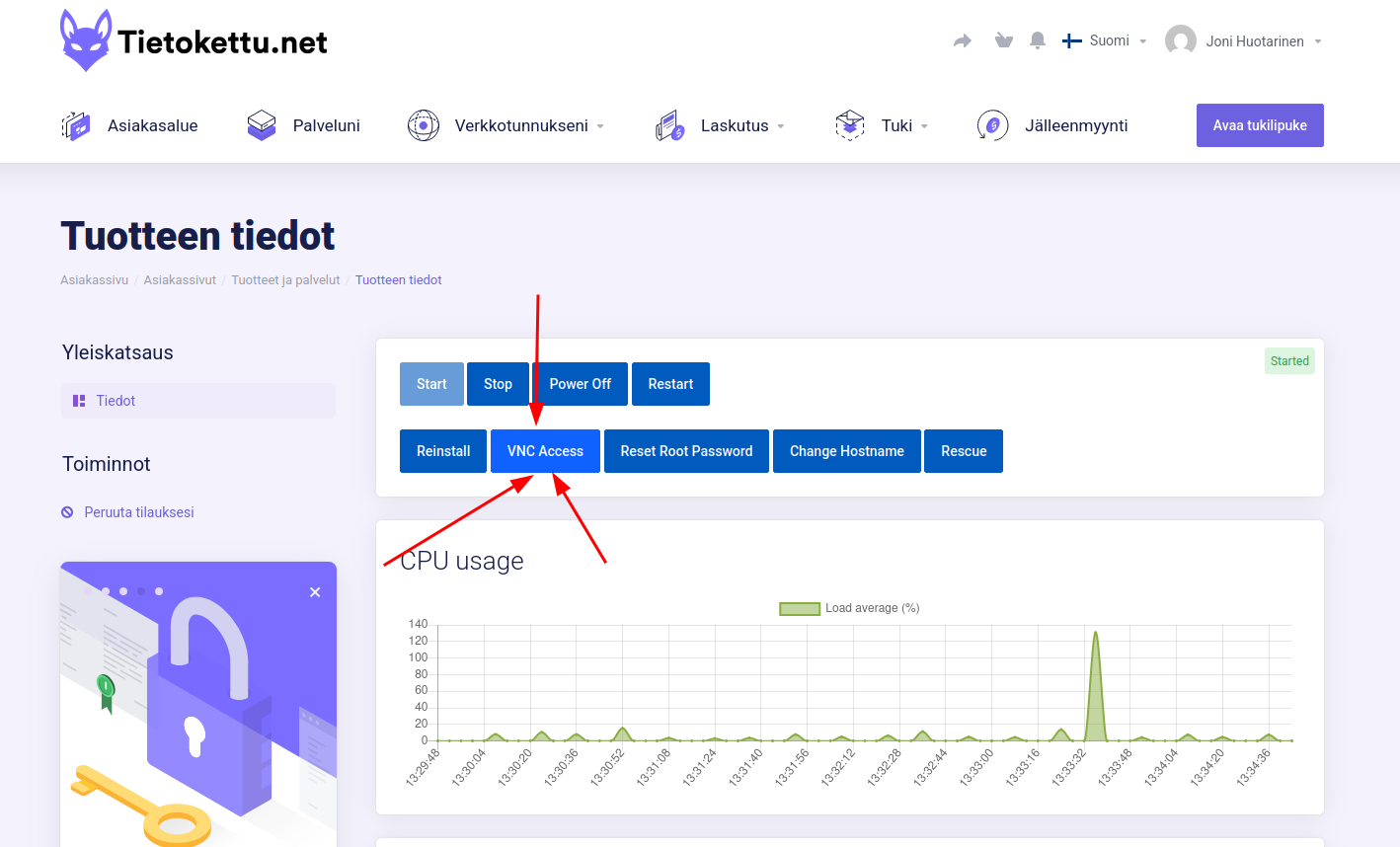
Inside VNC you can log into your server.
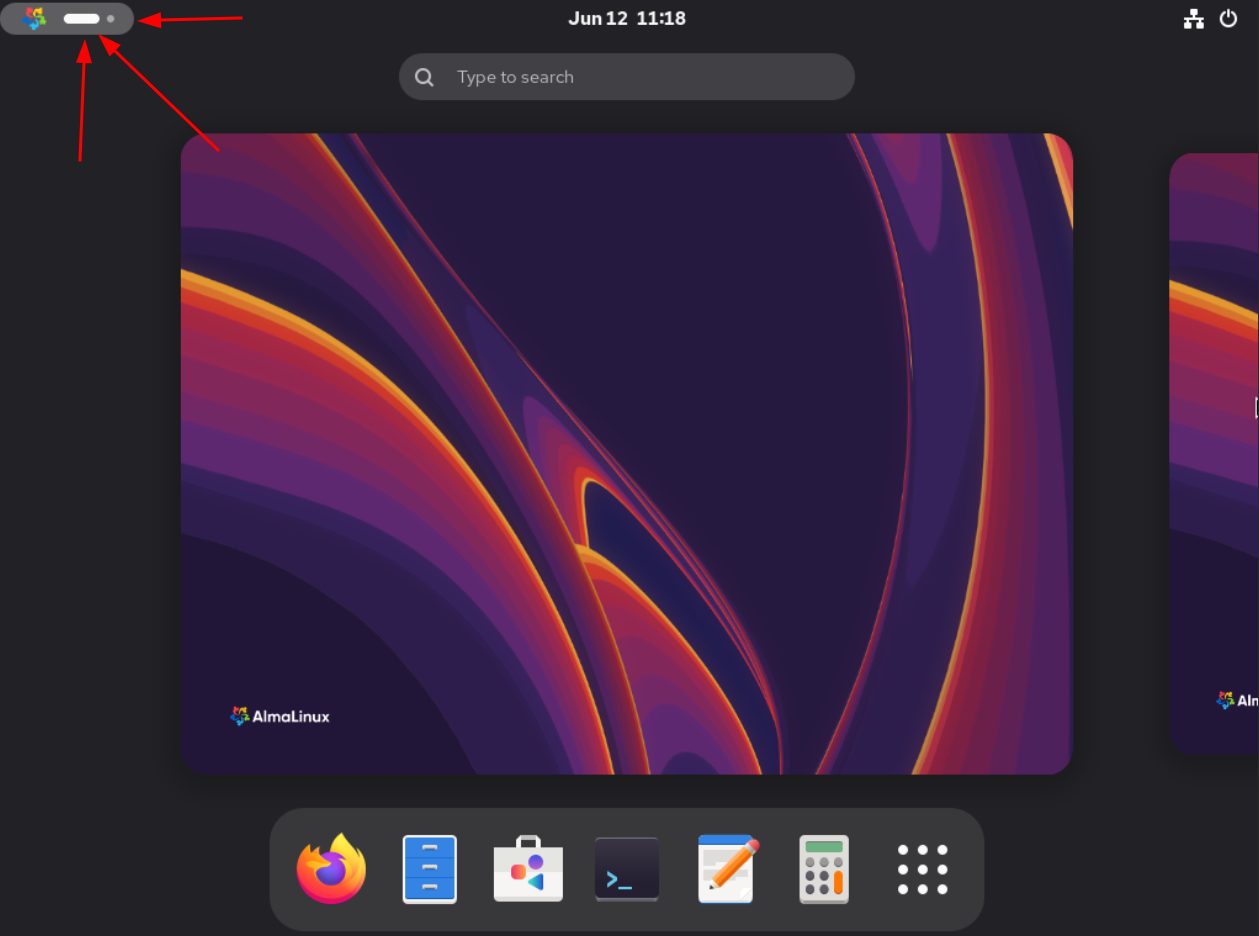
6. RDP (Remote Desktop Protocol) can be activated inside settings. Here's a quick quide.
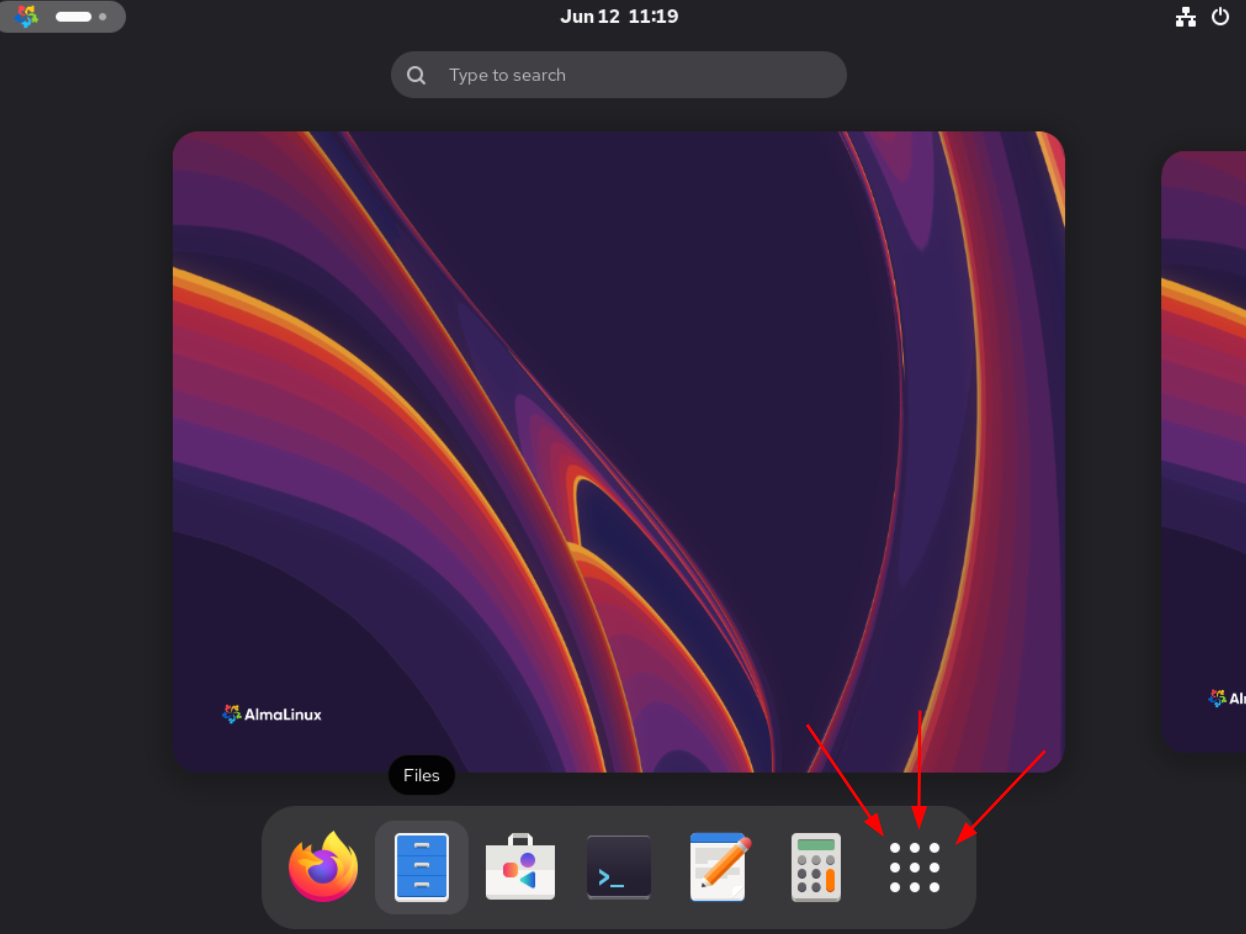
Press the white bar in top left, then the 9 dots. After this you see a search bar where you can look for settings or setting can also be found in the list under the search bar.
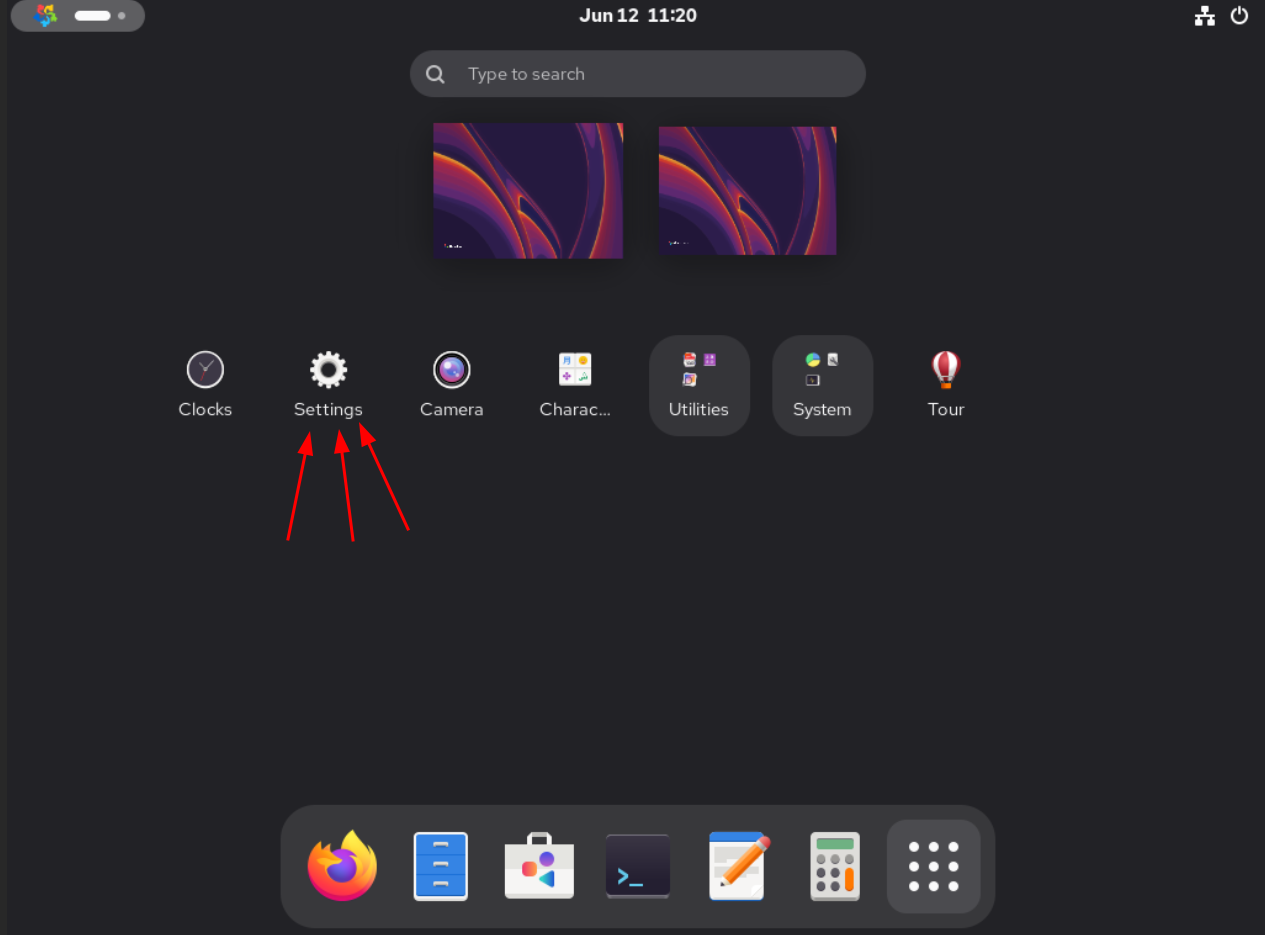
RDP settings can be found under the system tab (left side) in there you can find Remote desktop settings.
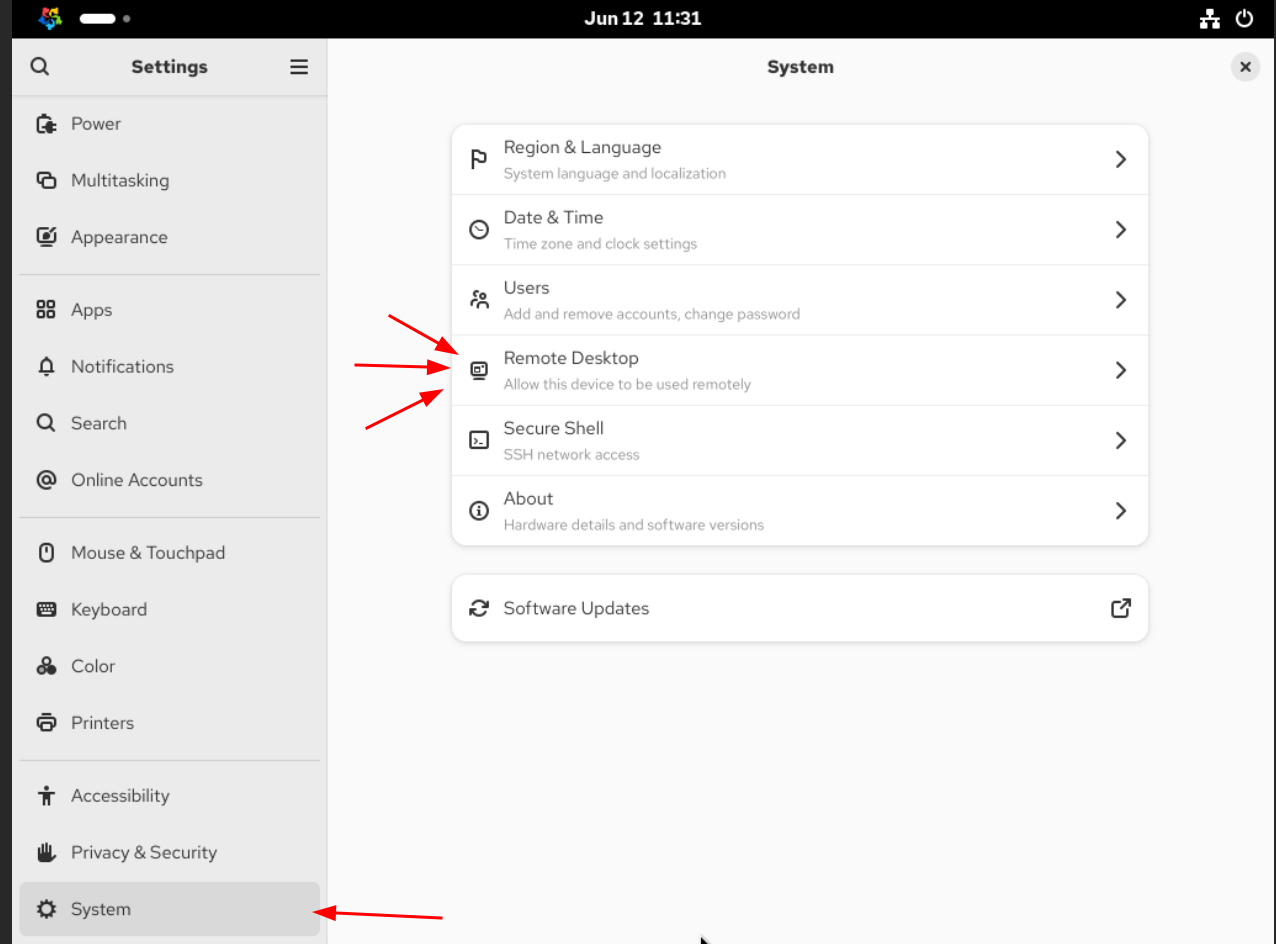
Inside the Remote Desktop goto Remote login (arrow 1).
Inside this tab press Remote login. Inside there press the Remote login button. It should turn to blue. (arrow 2).
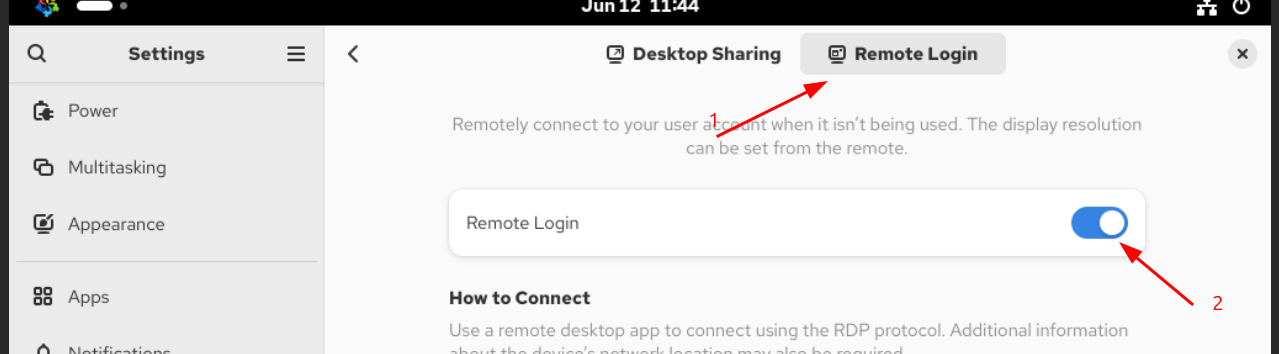
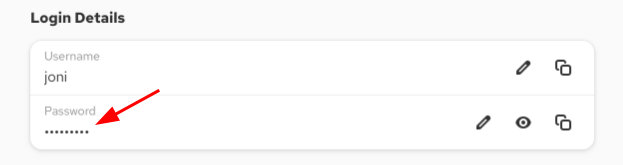
Inside the Remote login tab you can also edit your login credentials.
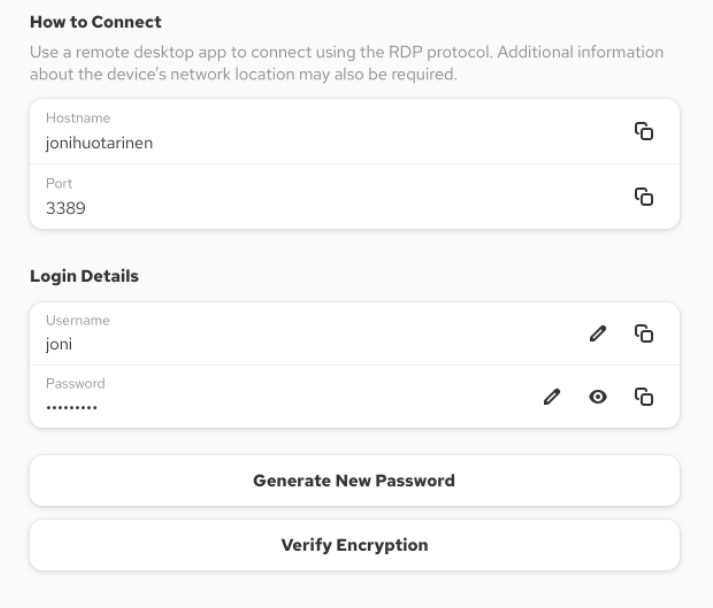
7. Next I will show how to connect to the server using windows machine.
First search for remote desktop connection.
Remote desktop connection
You should see it in the search responses.
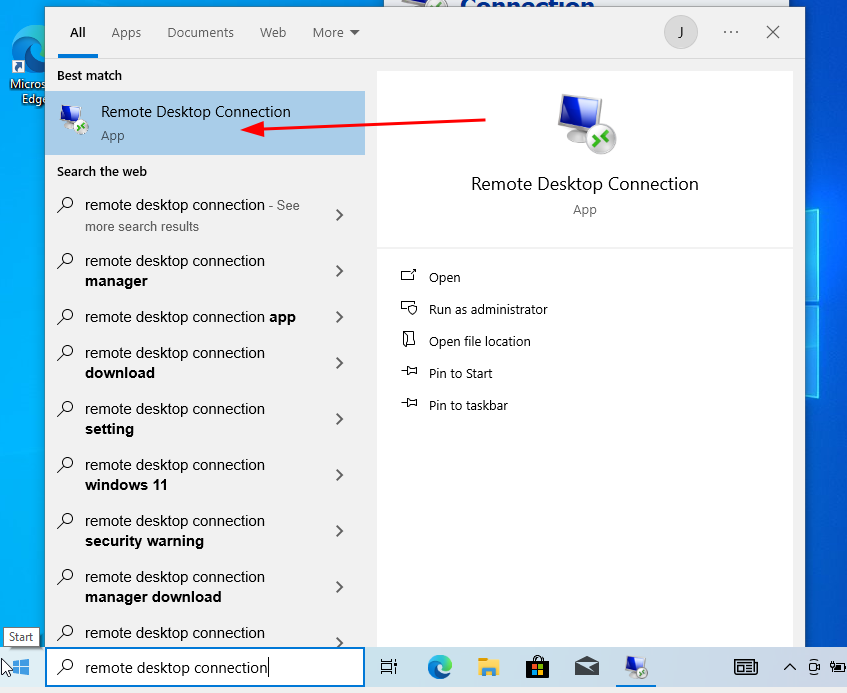
Open it by clicking it. After that you should see a new window pop up.
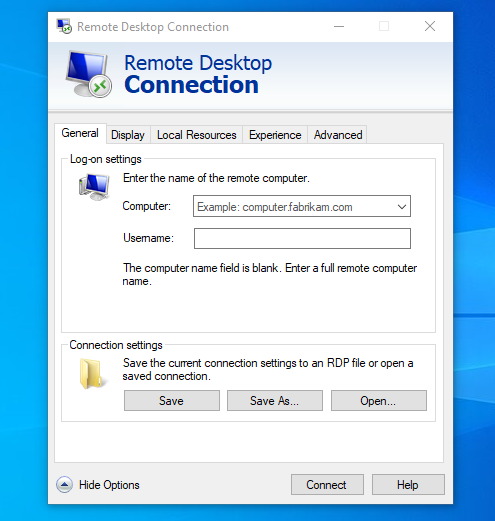
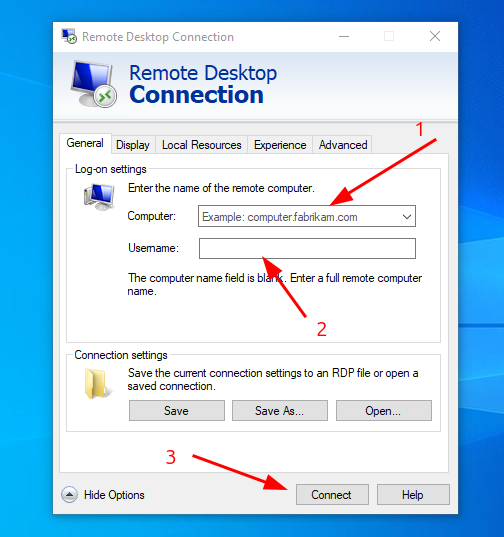
Here you only need to fill the "computer" and "username" sections and then press "connect".
In the computer section put your server ip addres. example (192.168.0.1)
In the username section you need to put the username you chose in the almalinux settings tab.
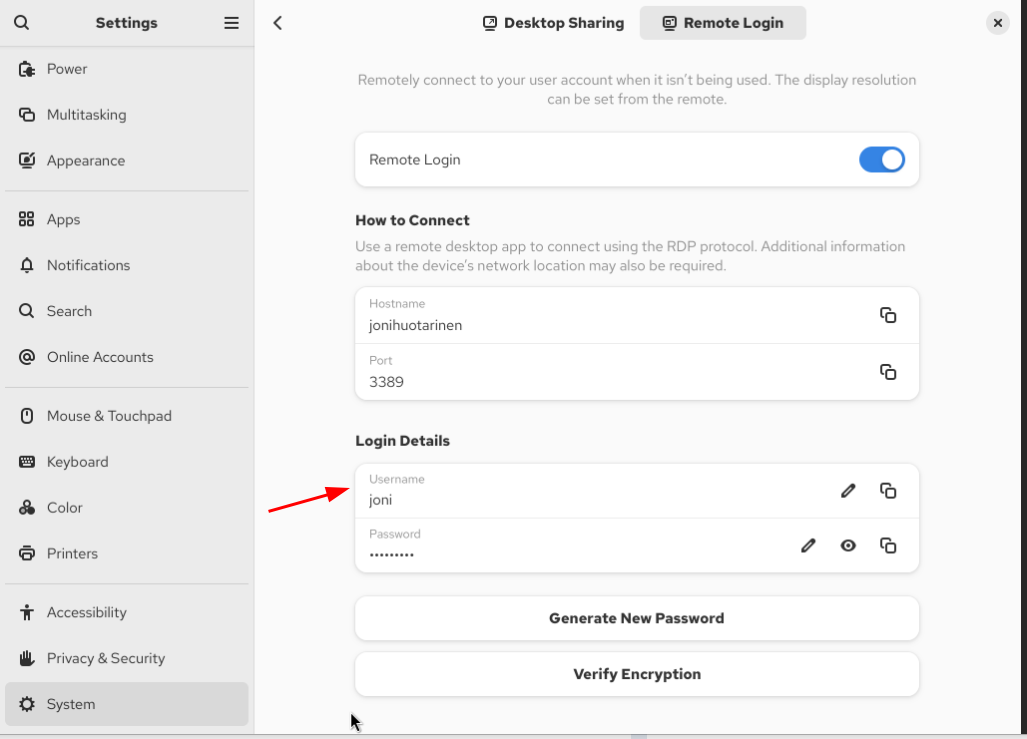
After that press connect. Then you should see a new window pop up. In here you fill the password you chose in the almalinux settings. Then press ok.
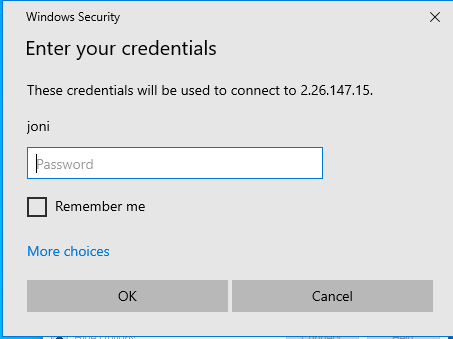
After this the almalinux server should start.
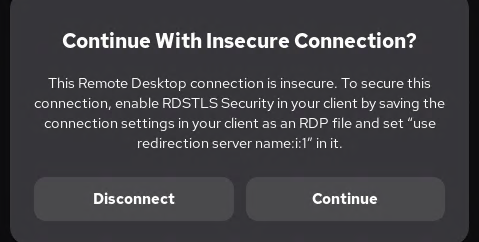
If you get a warning message, you can press continue.
After this you just need to login to your almalinux user.